Version 3.1.4 · Windows 11, 10, 8, 7 · Free

GS Auto Clicker – Automate Mouse Clicks with Ease

GS Auto Clicker makes repetitive clicking effortless by automating mouse actions with customizable settings. Set your preferred click intervals, choose mouse buttons, and let the tool handle routine tasks automatically. Whether you’re gaming, testing applications, or improving everyday productivity, GS Auto Clicker helps save time and reduce manual effort.

  • Version 3.1.4
  • Windows
  • Under 1 MB
  • Freeware
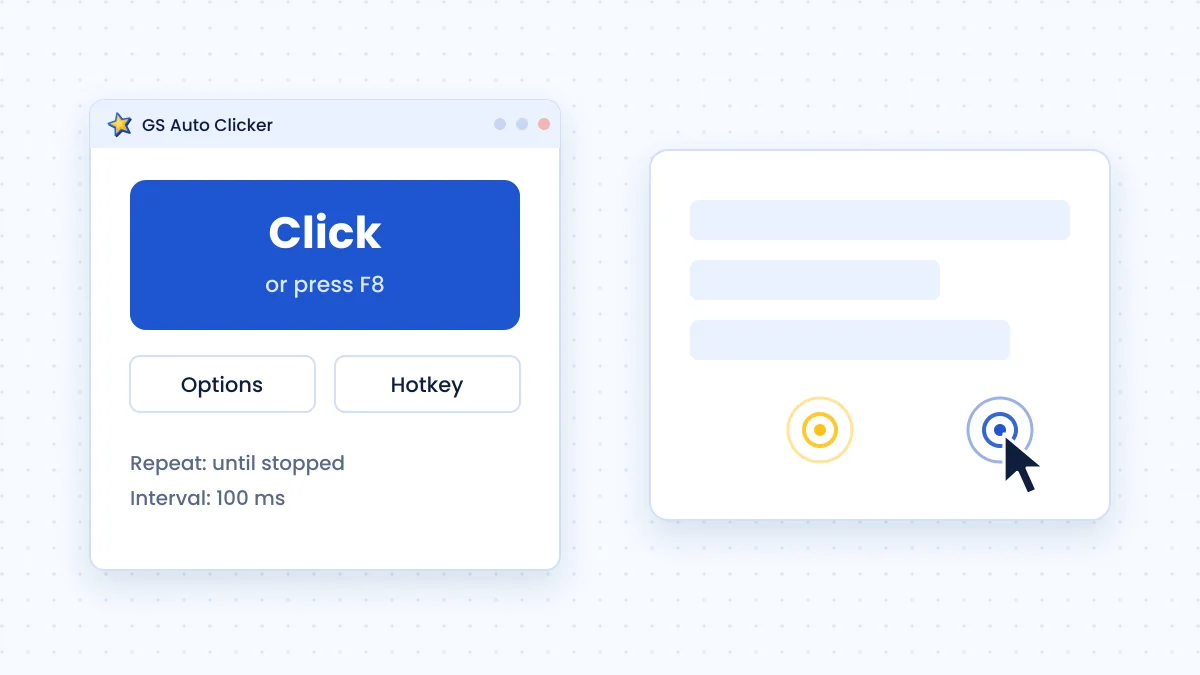
Illustration of an auto clicker window with a large Click button and click points on screen GS Auto Clicker Click press F8 to start / stop Options Hotkey F8
Software
GS Auto Clicker
Latest version
3.1.4
Developer
GoldenSoft
Platform
Windows XP – 11
File size
Under 1 MB
License
Freeware

Lightweight

Smaller than most photos on your phone and gentle on old hardware.

Quick to install

A short, standard Windows installer with no account to create.

Works offline

Runs locally on your PC; no internet connection needed after setup.

Free to use

Distributed as freeware with no paid tier to unlock.

Overview

What is GS Auto Clicker?

GS Auto Clicker is a free Windows utility from GoldenSoft that clicks the mouse for you. You choose the button, click type, repeat count and interval, then start or stop it with one hotkey.

It suits clicker games, repetitive office forms and simple interface testing. Beyond single-spot clicking, it records several screen positions and replays them in order, without scripts, accounts or an internet connection.

Illustration of the GS Auto Clicker window with a large Click button and click targets on screen
One button, one hotkeyPress F8 to start clicking and press it again to stop

Features

Key Features of GS Auto Clicker

Everything below is available in the free 3.1.4 release from the Options menu.

One hotkey to start and stop

GS Auto Clicker is built around a single global hotkey. Press F8 to begin clicking from any window and press it again to stop. Because the shortcut works while another program has focus, you never need to switch back to the clicker mid-task. You can assign a different key if F8 clashes with a game.
Choose button and click type

Pick the left, right or middle mouse button and decide between single and double clicks. That covers ordinary button presses, context menus and opening items that need a double click, all from one compact options dialog.

Repeat count or until stopped

Set an exact number of repetitions for jobs with a known size, or choose “Repeat until stopped” and end the run with the hotkey. A fixed count is the safer choice when you will not be watching the screen.

Adjustable click interval

Control the delay between clicks in hours, minutes, seconds and milliseconds. Short intervals suit fast tapping, while longer gaps give slow web pages or menus time to respond before the next click arrives.

Hides while it works

The View settings can minimise the window during clicking and bring it back afterwards, so the clicker never covers the area it is clicking.

Record and replay multiple clicks

Turn on multi-click recording, press “Pick point” for every position you need, and GS Auto Clicker replays the clicks in the same order. It is the feature that turns a single-spot clicker into a basic sequence tool.

Fix the pointer while clicking

Keep the cursor locked to one position during a run so an accidental bump of the mouse does not send clicks somewhere else. Leave it off when you want clicks to follow wherever the pointer currently is.

Action after clicking

Choose what happens when a run ends, such as doing nothing, closing the program or shutting down the computer — handy for long unattended tasks.

Tiny footprint

The installer is under 1 MB and the program idles quietly in the background, so it runs comfortably on older PCs and low-power laptops.

Free download

Download GS Auto Clicker

Get version 3.1.4 for Windows — one installer for 32-bit and 64-bit PCs. Click Download for Windows to save the installer directly from this website.

Download for Windows
Software details
Version3.1.4 Latest
Operating systemWindows 11, 10, 8, 7, Vista, XP
Architecture32-bit and 64-bit (single installer)
File sizeUnder 1 MB
LicenseFreeware
DeveloperGoldenSoft
Other buildsmacOS and Android (from goldensoft.org)

After downloading, scan the file with Windows Security before you open it.

Use cases

What Can You Do With GS Auto Clicker?

Real situations where an auto clicker earns its place, along with a note on using it responsibly.

Idle and clicker games

Games that reward constant tapping — or that need you to buy items one at a time — are the classic use. Set the interval to suit the game and let the clicker handle the repetition. Check each game’s rules first, as some online titles forbid automation.

Repetitive office tasks

Approving a long list of items, paging through records, or pressing the same “Next” button hundreds of times are good candidates. A recorded sequence can step through a fixed form layout faster and more consistently than hand clicking.

Basic UI testing

Testers and developers use simple click loops to check that a button survives repeated presses, or to reproduce a bug that only appears after many clicks. Fixed repeat counts make each test run identical.

Keeping a page or session active

A slow interval — one click every few minutes on a neutral spot — can stop a dashboard or remote session from timing out while you monitor it. Pick a safe, empty area so nothing changes by accident.

Reducing strain on your hand

People with repetitive strain or limited hand mobility use auto clickers to avoid hundreds of physical clicks a day. Pairing the hotkey with an easy-to-reach key makes the tool more comfortable to control.

Multi-step sequences

Some routines need clicks in several places — open a menu, choose an item, confirm. Recording each point once lets you replay the whole chain on demand instead of repeating three or four clicks every time.

Interface

Simple Interface, Practical Controls

The main window stays small. All the useful controls live in three Options categories: Clicking, Recording and Settings. The illustrations below show how each one is organised.

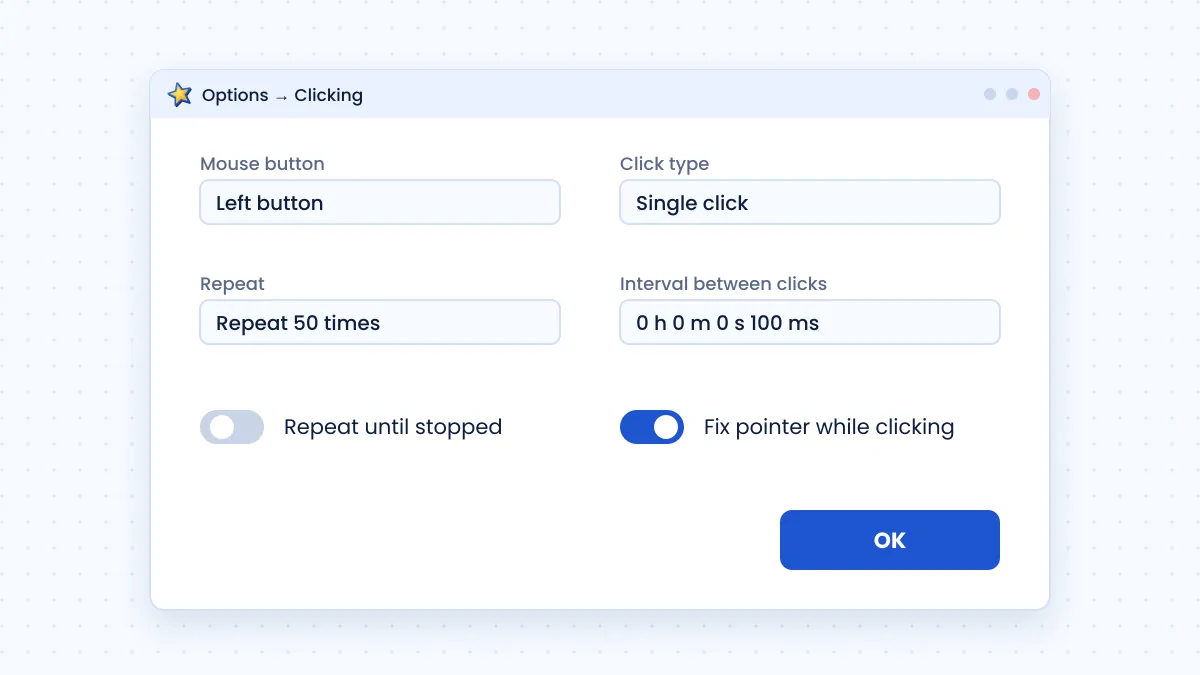
Illustration of the GS Auto Clicker clicking options: mouse button, click type, repeat count and interval
Illustration of Options → Clicking

Clicking options

This is where you define the click itself. Most jobs only ever need this panel.

  • Left, right or middle mouse button
  • Single or double click
  • Repeat a set number of times, or until stopped
  • Interval in hours, minutes, seconds and milliseconds
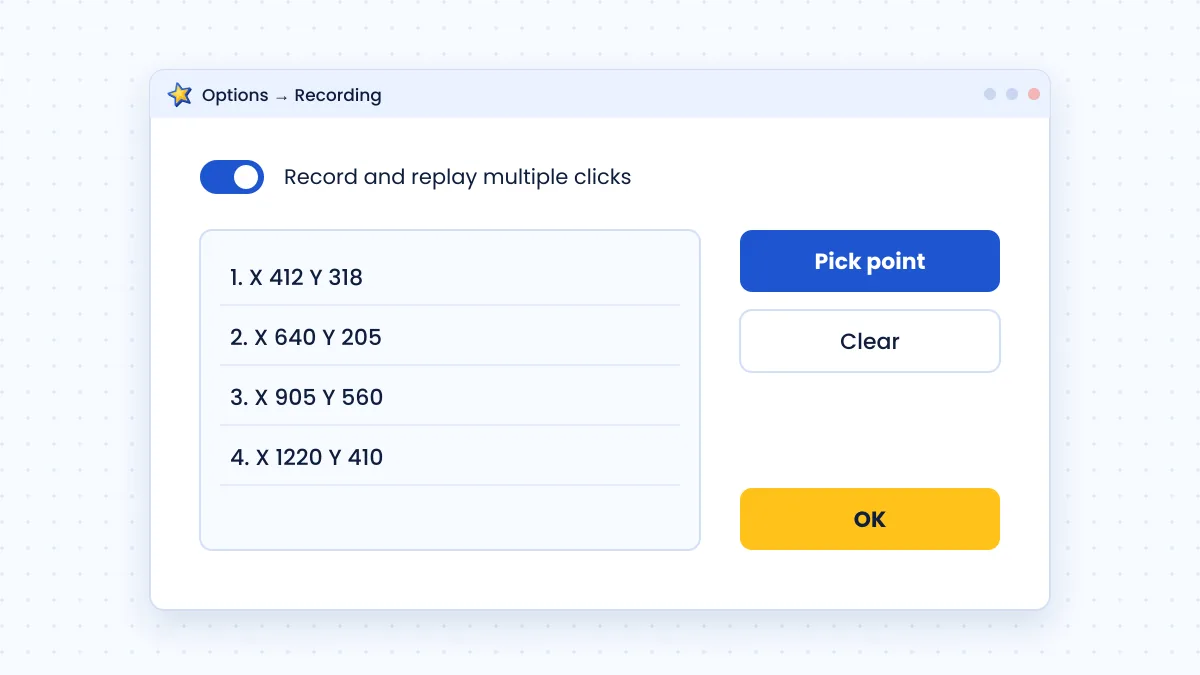
Illustration of the recording panel with a list of picked click points
Illustration of Options → Recording

Recording multiple clicks

Switch on “Record and replay multiple clicks”, then use Pick point for each position. The list keeps the order you will replay.

  • Add as many points as the task needs
  • Replay starts with the same hotkey
  • Clear and re-record when the layout changes
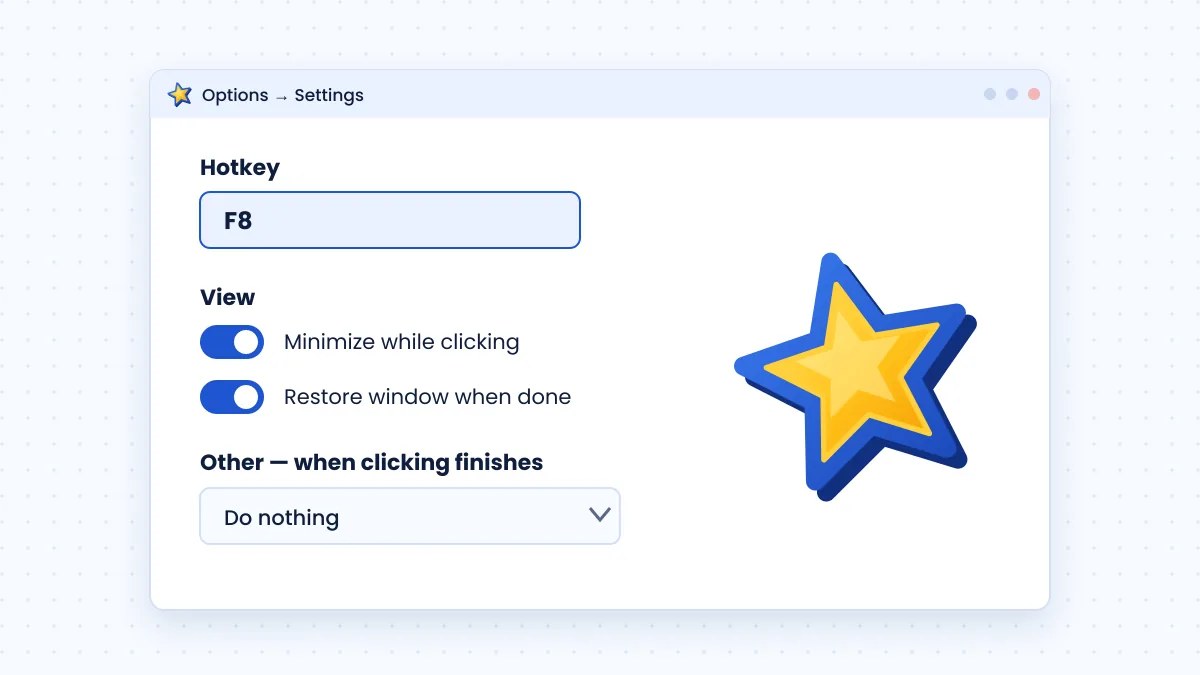
Illustration of settings: hotkey field, view options and action after clicking
Illustration of Options → Settings

Settings

Fine-tune how the program behaves around your work rather than how it clicks.

  • Hotkey: replace F8 with a key that suits you
  • View: minimise while clicking, restore afterwards
  • Other: choose an action when clicking ends

Workflow

How GS Auto Clicker Works

The program simulates the same mouse events Windows produces when you press a physical button. Your setup tells it which events to send, where and how often.

  1. 1

    Download

    Save the small Windows setup file, which is under 1 MB.

  2. 2

    Install

    Run the installer, approve the Windows prompt and finish the short setup.

  3. 3

    Configure

    Open Options to choose button, click type, repeat count and interval.

  4. 4

    Run

    Hover over the target, then press F8 or the big Click button to start.

  5. 5

    Stop

    Press F8 again, or let a fixed repeat count end the run automatically.

Versions

Available Versions

VersionPlatformStatus
3.1.4WindowsLatest
3.1.2WindowsOlder

Older versions of GS Auto Clicker

Version 3.1.2 is still mirrored by some download archives. People occasionally look for it to match a setup they used years ago or to test behaviour on an old machine.

For everyone else, 3.1.4 is the better choice: newer releases carry the developer’s latest fixes, and both versions offer the same core options. We do not link to archived installers because we cannot vouch for every mirror.

Spotlight

Advanced Click Recording

The multi-click recorder is what separates GS Auto Clicker from the most basic clickers. Rather than hammering one coordinate, it stores a list of screen positions and visits them in order on every repetition.

That makes short workflows repeatable: select a row, press an action button, confirm the dialog, move on. Combine the recorder with a repeat count and a sensible interval and a ten-minute chore becomes a one-key job.

  • Record points with the “Pick point” button
  • Replay in the exact order you captured them
  • Use a longer interval when windows need time to open
  • Re-record whenever window positions or display scaling change

Configuration and customization

You do not need to touch every setting. Start with these, in this order:

SettingWhereGood starting point
Mouse buttonClickingLeft
Click typeClickingSingle
IntervalClicking100–250 ms
RepeatClickingFixed count first
HotkeySettingsF8, or an unused key
ViewSettingsMinimise while clicking
01 / TROUBLESHOOTING

Fixes

Common Issues and Troubleshooting

Most problems come down to hotkeys, permissions or changes in screen layout. Expand an item for the likely cause and the fix.

The hotkey does nothing

Possible cause
Another program already uses the same key, or the target window runs as administrator.
Solution
Change the hotkey in Options → Settings, or right-click GS Auto Clicker and choose Run as administrator so it has the same privilege level as the target program.

Clicks land in the wrong place

Possible cause
The pointer moved during the run, or the screen layout changed after you recorded points.
Solution
Enable “Fix pointer while clicking” for single-spot jobs. For sequences, re-record the points after changing display scaling, window size or resolution.

The game ignores the clicks

Possible cause
Some games read input at a low level or block simulated clicks on purpose.
Solution
Try windowed mode, run the clicker as administrator and lengthen the interval. If the game still blocks it, that is a deliberate restriction you should respect.

Windows warns about the installer

Possible cause
SmartScreen flags less common downloads, even legitimate ones.
Solution
Confirm the file came from GoldenSoft’s site and scan it with Windows Security. Choose More info → Run anyway only after those checks — never turn antivirus off.

The clicker keeps going and you cannot stop it

Possible cause
Repeat until stopped is enabled and the hotkey is hard to reach or blocked.
Solution
Press the hotkey firmly while the pointer is over a harmless area. As a fallback, use Ctrl + Alt + Delete → Task Manager to end the process, then switch to a fixed repeat count.

Safety

Download Safety and Verification

CheckWhat to expect
PublisherGoldenSoft
Version3.1.4
SourceOfficial mirror linked from goldensoft.org
SizeUnder 1 MB — a much larger file is a warning sign
ChecksumNot published by the developer; scan with Windows Security instead

Compare

Single-Point vs Recorded Clicking

GS Auto Clicker gives you two ways to work. Choosing the right one up front saves setup time.

ConsiderationSingle-point clickingRecorded multiple clicks
Best forRepeating one button or spotShort routines across several buttons
Setup timeSecondsA minute or two to pick points
Follows the cursorYes, unless the pointer is fixedNo — uses saved positions
Sensitive to layout changesLowHigh; re-record after changes
Started byHotkey or Click buttonHotkey or Click button

FAQ

Frequently Asked Questions

Short, specific answers to the questions people ask most about GS Auto Clicker.

What is GS Auto Clicker?

GS Auto Clicker is a small, free Windows program made by GoldenSoft that clicks the mouse for you. You choose the mouse button, the click type, how many times to repeat and how long to wait between clicks, then start and stop it with a hotkey. It can also record several screen positions and replay clicks on them in order.

What does GS Auto Clicker do in practice?

It replaces repetitive manual clicking. Typical jobs include clicking the same button many times in a game or app, stepping through a fixed sequence of buttons, or keeping a page active while you watch it. It does not read the screen, make decisions or run scripts — it repeats the clicks you configure, which keeps it simple and predictable.

Is GS Auto Clicker free?

Yes. GoldenSoft distributes the Windows version as freeware, and the major download directories list it as free and without in-app advertising. There is no paid edition to unlock. If any website asks you to pay for it, you are not looking at the genuine distribution.

Is GS Auto Clicker safe to install?

The program itself is a long-running, widely reviewed utility. Risk mostly comes from where you download it: repackaged installers on unknown sites may bundle unwanted software. Get it from the developer, keep Windows Security enabled, and scan the installer before running it.

Which versions of Windows does it support?

Download directories list support from Windows XP and Vista through Windows 7, 8, 10 and 11. Because it is a lightweight desktop program, it also runs on both 32-bit and 64-bit editions. Most people today use it on Windows 10 or Windows 11 without any extra setup.

Is there a 64-bit download?

There is one Windows download rather than separate 32-bit and 64-bit builds. The same installer works on 64-bit Windows 10 and 11, so you do not need to choose an architecture.

How do I download GS Auto Clicker?

Use the download button on this page to get the setup file. It is under 1 MB, so it finishes in a few seconds. Save it to your Downloads folder and scan it with Windows Security before opening it.

How do I install it?

Open the downloaded setup file, confirm the Windows prompt, follow the short installer and launch the app from the Start menu or desktop shortcut. The whole process takes under a minute.

Does GS Auto Clicker work offline?

Yes. After installation it runs entirely on your computer. It does not need an internet connection to click, record points or save settings.

How do I stop the clicking?

Press the same hotkey you used to start it — F8 by default. If you set a fixed repeat count, it also stops on its own after the last click. Choosing a hotkey you can always reach is the most important safety habit with any auto clicker.

Can I change the F8 hotkey?

Yes. Open Options → Settings → Hotkey and assign a different key. This is useful when a game or application already uses F8. Rarely used keys such as F6, F7 or F9 work well.

How do I update or uninstall it?

To update, download the latest installer from GoldenSoft and install it over the existing copy. To uninstall, open Settings → Apps → Installed apps in Windows, find GS Auto Clicker and select Uninstall.

Are older versions available?

Version 3.1.2 still appears on some download archives. Unless you have a specific compatibility reason, use the current 3.1.4 release, since older builds do not include later fixes.

Why is GS Auto Clicker not working in my game or app?

The usual causes are a hotkey conflict, the target program running with administrator rights while the clicker does not, or the game ignoring simulated input. Try a different hotkey, run GS Auto Clicker as administrator, or switch the game to windowed mode.

Where can I get help with the software?

For questions about the program itself, contact the developer, GoldenSoft, through its official website. For corrections to the information on this site, use the Contact Us page linked in the footer.