GS Auto Clicker looks almost too simple when you first open it: one big button and an Options menu. That simplicity is the point, but it also means some useful settings are a menu or two away. This walkthrough takes you from a freshly installed copy to a confident first run, explains what every main option does, and shows the habits that keep automated clicking safe and predictable.
If you have not installed the program yet, start with the installation guide and come back here.
How GS Auto Clicker thinks about a click job
Every job in GS Auto Clicker is defined by four questions:
- Which button? Left, right or middle.
- What kind of click? Single or double.
- How many times? A fixed number, or until you stop it.
- How fast? The interval between clicks.
Optionally, you can add a fifth: where? By default, clicks happen wherever the mouse pointer is. With recording turned on, they happen at positions you saved earlier.
Once you understand those choices, the whole program makes sense.
The main window
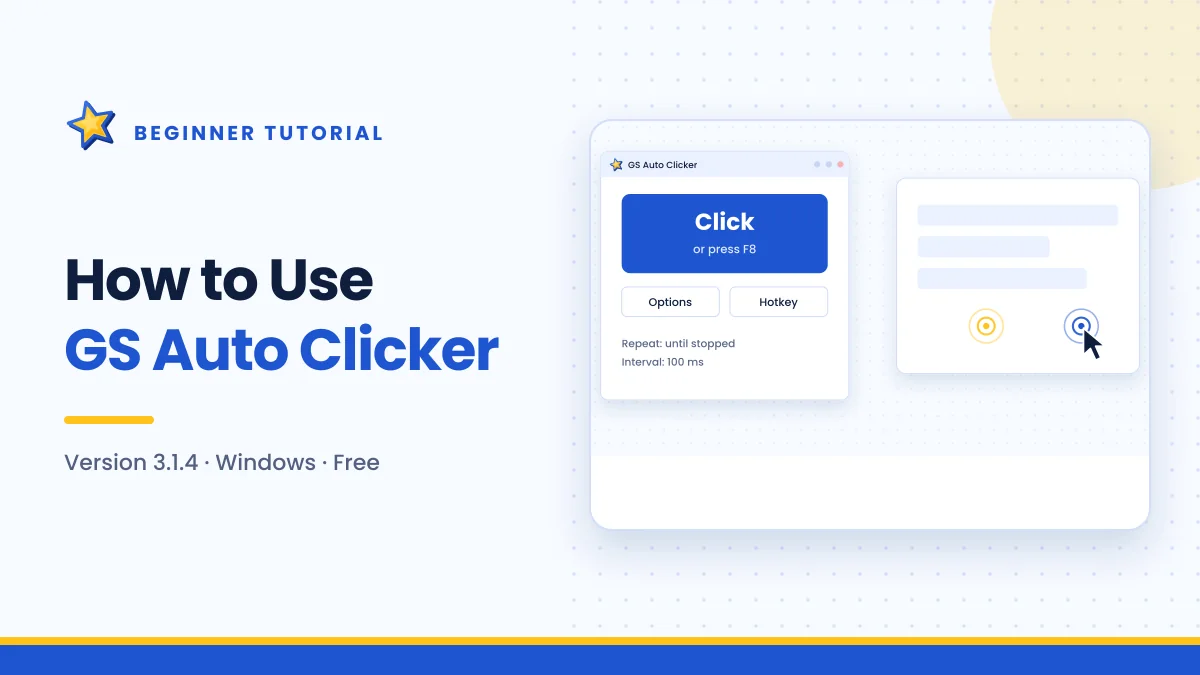
When you open GS Auto Clicker, you see:
- The Click button. Starts a job using your current settings. It does the same thing as the hotkey.
- The Options menu. Contains three categories: Clicking, Recording and Settings.
- The hotkey hint. A reminder that F8 starts and stops clicking unless you changed it.
You will spend most of your time in Options → Clicking, so let us start there.
Setting up your first click job
Step 1: Open the clicking options
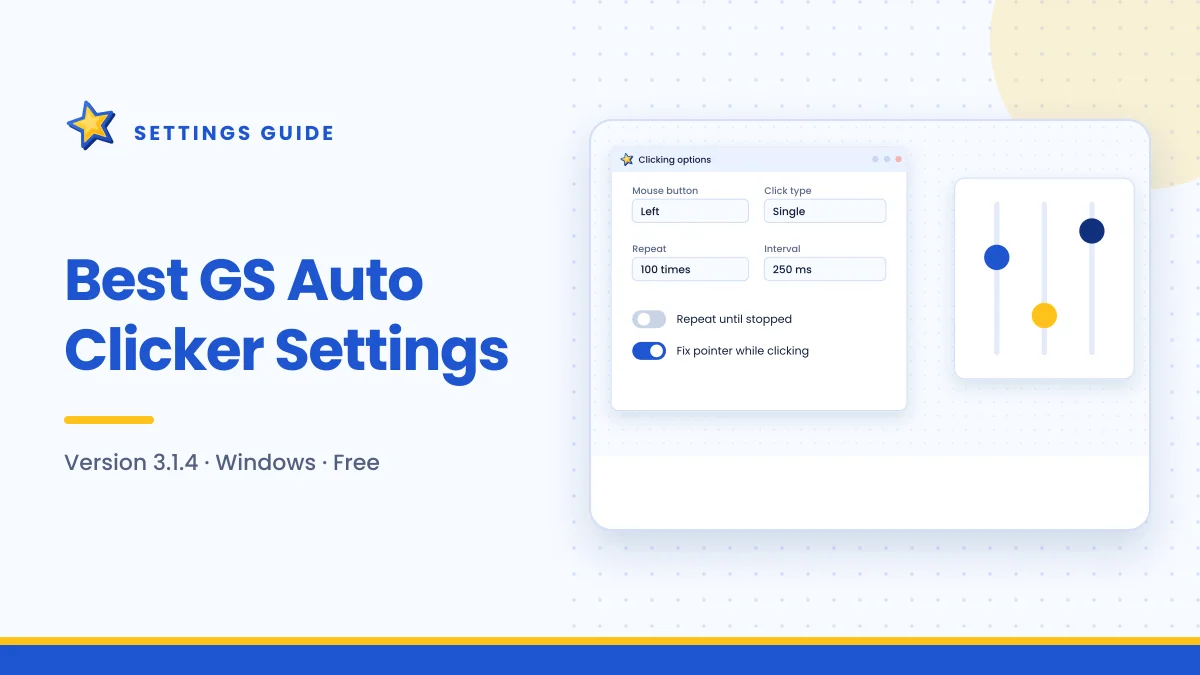
Click Options, then choose Clicking. A dialog opens with two areas: one for how each click behaves and one for how it repeats.
Step 2: Choose the mouse button
Select Left for normal clicking on buttons, links and game objects. Use Right when you need a context menu, and Middle for the rare tasks that depend on the scroll-wheel button.
Step 3: Choose single or double click
Leave it on Single unless your task needs double clicks, such as opening files or selecting words. A double click counts as one repetition, so 10 repetitions produce 20 physical clicks.
Step 4: Set the repeat mode
You have two options:
- Repeat a set number of times. Enter a count, for example 25. The job stops automatically after the last click.
- Repeat until stopped. The job keeps going until you press the hotkey again.
For your first few jobs, always use a fixed count. It acts as a safety net.
Step 5: Set the interval
The interval is the pause between repetitions, entered in hours, minutes, seconds and milliseconds. For a first test, try 200 milliseconds, which is five clicks per second. That is fast enough to see the effect and slow enough to follow.
Step 6: Decide whether to fix the pointer
The option to fix the pointer while clicking locks clicks to the spot where the cursor was when you started. It protects you from accidentally nudging the mouse mid-run. Turn it on for single-spot jobs.
Click OK to save.
Running the job
- Move your mouse over the target, such as a button in a game.
- Press F8.
- Watch the clicks happen.
- The job stops after your repeat count — or press F8 again to stop it early.
That is the whole cycle. You can repeat it as often as you like; the program remembers your settings.
A safe place to practise
Open a blank Notepad document and hover over the text area. Clicks there do nothing harmful, so you can try different intervals and counts without risk. Once the behaviour feels natural, move on to your real task.
Using the Settings category
Open Options → Settings to adjust how the program behaves around your work.
Hotkey
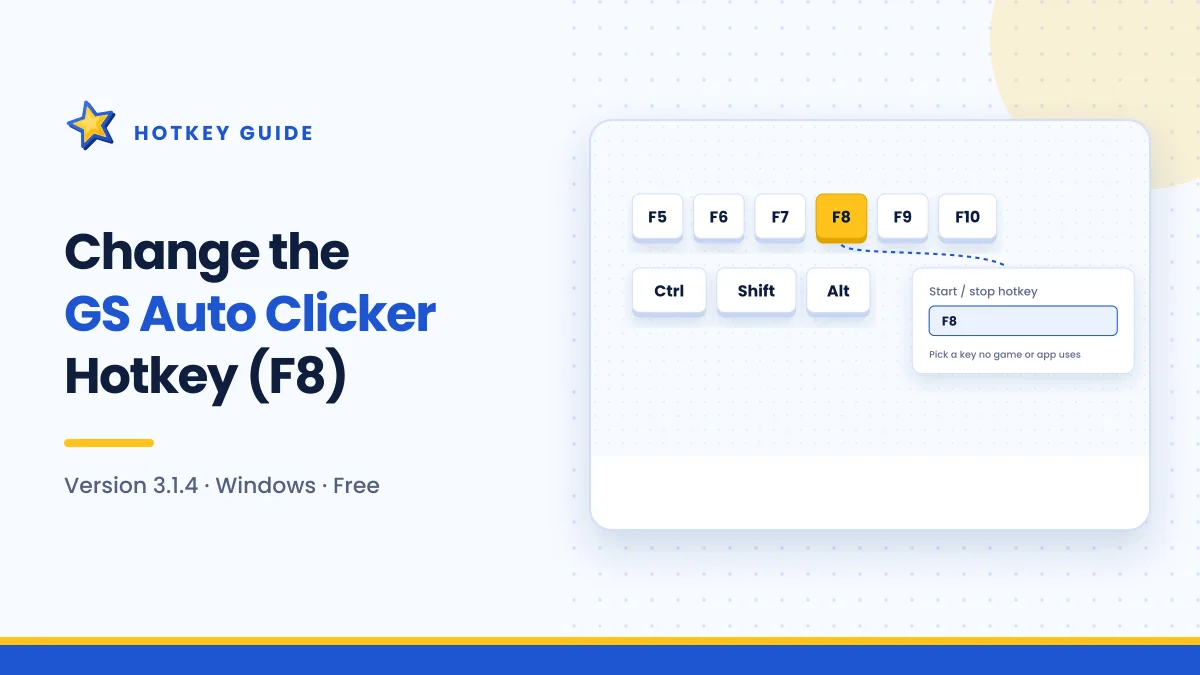
Change the start/stop key if F8 conflicts with another program. Pick something you can reach instantly, because the hotkey is also your emergency stop. See How to Change the GS Auto Clicker Hotkey for ideas.
View
Choose whether the window minimises while clicking and returns when the job finishes. Minimising keeps the program from covering the area you are clicking.
Other
Select an action to take after clicking ends, such as doing nothing, closing the program or shutting down the computer. Leave this on "do nothing" until you are comfortable with long unattended jobs.
Going further: recording multiple clicks
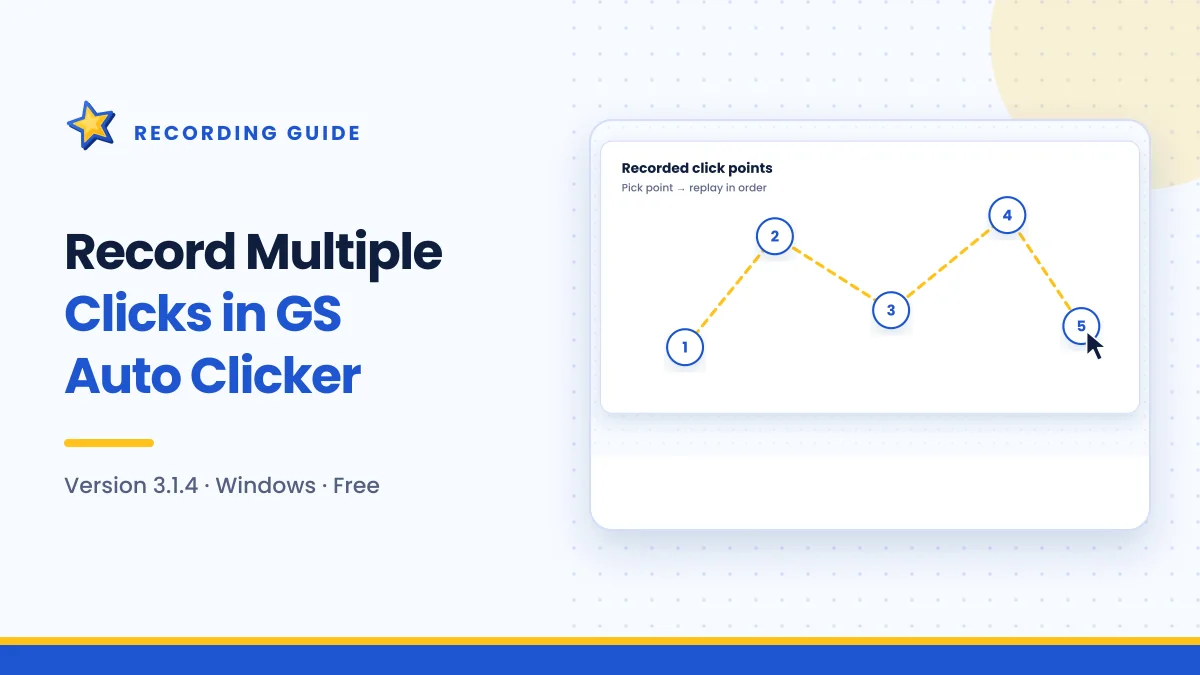
When a task needs clicks in several places — a menu, then an item, then a confirm button — use Options → Recording. Turn on "Record and replay multiple clicks", press Pick point for each position and click OK. Starting a job then replays the points in order.
This deserves its own walkthrough, so we wrote one: How to Record Multiple Clicks.
Example jobs to try
| Task | Button | Type | Repeat | Interval |
|---|---|---|---|---|
| Clicker game tapping | Left | Single | Until stopped | 50–100 ms |
| Paging through a list | Left | Single | Fixed count | 500 ms–1 s |
| Opening many files in turn | Left | Double | Fixed count | 1–2 s |
| Keeping a session active | Left | Single | Until stopped | 2–5 minutes |
Treat these as starting points. Our settings guide explains how to tune each one.
Habits that prevent mistakes
Always know where the cursor is
An auto clicker clicks wherever the pointer is unless you fixed it or recorded points. Before pressing the hotkey, glance at the cursor.
Avoid dangerous buttons
Never point an automated job at anything that deletes, purchases, sends or submits unless that is exactly what you want repeated.
Start slow, then speed up
Very short intervals can overwhelm slow applications or web pages, causing missed clicks. Start with a relaxed interval and shorten it gradually.
Respect the rules of what you click
Many online games and some websites prohibit automation. Using a clicker where it is banned can get an account suspended. Use it where it is allowed.
Troubleshooting your first run
Nothing happens when you press F8
Another program may be using F8, or the window you are clicking runs with administrator rights. Try a different hotkey, or run GS Auto Clicker as administrator. Full fixes are in the troubleshooting guide.
It clicks too fast or too slow
Revisit the interval. Remember that it controls the gap between repetitions, and that a double click produces two clicks per repetition.
It will not stop
Press the hotkey firmly once. If the job is set to repeat until stopped and the hotkey is not responding, open Task Manager with Ctrl + Shift + Esc and end GS Auto Clicker, then switch to a fixed count.
Frequently asked questions
Can I click in a game while it is in full-screen mode?
Often yes, because the hotkey works globally. Some games block simulated input, in which case windowed mode or administrator rights may help.
Can I use the Click button instead of the hotkey?
You can, but the hotkey is more practical because you do not need to move the cursor away from your target.
Summary
Using GS Auto Clicker means answering four questions — button, click type, repeat mode and interval — in Options → Clicking, then pressing F8 over your target. Start with a fixed repeat count and a moderate interval, practise in Notepad, and adjust the Settings category to suit your workflow. When one spot is not enough, move on to recorded multi-point clicking.

Get GS Auto Clicker 3.1.4
Free, under 1 MB, for Windows. The button opens the developer’s website, goldensoft.org, in a new tab.
Download GS Auto Clicker