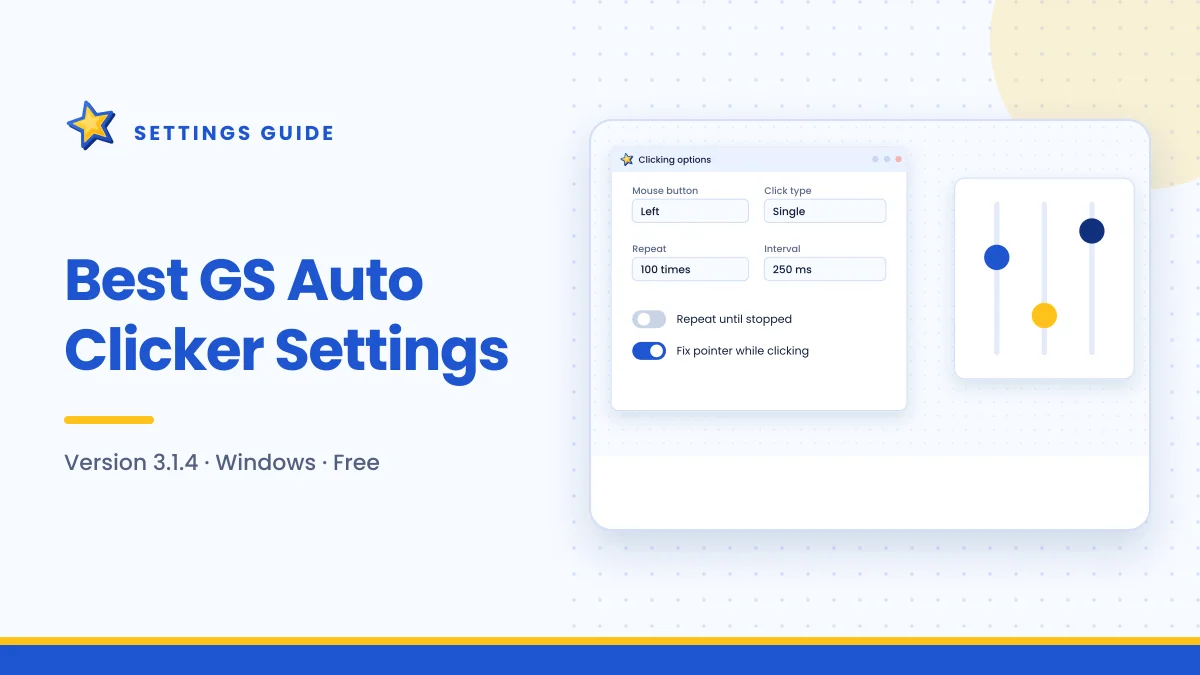
There is no single "best" configuration for GS Auto Clicker, because the right settings depend on what you are clicking. A clicker game, a slow web form and a remote desktop session each need different timing. This guide explains how each setting affects results, gives tested starting values for common tasks, and shows a simple method to fine-tune them for anything else.
The settings that matter most
GS Auto Clicker keeps its options in three places. Here is what each one controls and how much it affects the outcome.
| Setting | Location | Impact |
|---|---|---|
| Interval | Options → Clicking | High — controls speed and reliability |
| Repeat mode | Options → Clicking | High — controls when the job ends |
| Mouse button | Options → Clicking | Medium — must match the task |
| Click type | Options → Clicking | Medium — single vs double |
| Fix pointer | Options → Clicking | Medium — protects against drift |
| Hotkey | Options → Settings | Medium — control and safety |
| View | Options → Settings | Low — convenience |
| After-click action | Options → Settings | Low to high — depends on the action |
The interval and the repeat mode do most of the work, so we will start with them.
Understanding the interval
The interval is the waiting time between repetitions. A shorter interval means more clicks per second. The conversion is simple:
| Interval | Clicks per second (single click) |
|---|---|
| 1000 ms | 1 |
| 500 ms | 2 |
| 200 ms | 5 |
| 100 ms | 10 |
| 50 ms | 20 |
Faster is not always better
Every application needs a moment to respond to a click. If the next click arrives before the program has reacted to the previous one, it may be ignored, merged or cause errors. Web pages are especially sensitive because each click may load new content.
A useful rule: set the interval slightly longer than the time the target needs to respond. If a button opens a dialog that takes half a second to appear, an interval of 700–800 ms will be far more reliable than 100 ms.
Very long intervals
You can also set intervals in minutes or hours. Long intervals suit keep-alive tasks where a single click every few minutes stops a page or session from timing out.
Choosing a repeat mode
Fixed count
Use a fixed count whenever you know how many clicks the task needs, or whenever you will not be watching. The job ends on its own, so an unexpected change on screen cannot cause endless clicking.
Repeat until stopped
Use this when the task has no fixed end and you are present to stop it, such as tapping in a clicker game. Make sure your hotkey works before relying on this mode.
Tip: Even for open-ended tasks, a very large fixed count (for example 5,000) gives you the same effect with a built-in limit.
Recommended settings by task
These are starting points that work well in most cases. Adjust from here.
Clicker and idle games
- Button: Left
- Type: Single
- Repeat: Until stopped (or a large fixed count)
- Interval: 50–100 ms
- Fix pointer: On
Games usually register fast clicks well. If the game misses clicks, raise the interval to 100–150 ms. Check whether the game allows automation before using it, especially online titles.
Buying or crafting items one at a time
- Button: Left
- Type: Single
- Repeat: Fixed count matching the quantity you need
- Interval: 150–300 ms
- Fix pointer: On
A fixed count prevents you from spending more resources than intended.
Web forms and online dashboards
- Button: Left
- Type: Single
- Repeat: Fixed count
- Interval: 800 ms–2 s
- Fix pointer: On for one button; use recording for several
Web pages vary in loading speed. Start at the slow end and shorten the interval only after a few successful runs.
Opening a series of files or items
- Button: Left
- Type: Double
- Repeat: Fixed count
- Interval: 1–2 s
Remember that each repetition is two clicks. Allow time for each file or window to open.
Keeping a session or page active
- Button: Left
- Type: Single
- Repeat: Until stopped
- Interval: 2–5 minutes
- Fix pointer: On, over an empty, harmless area
Choose a spot where a click changes nothing, such as blank space beside the content.
Software and UI testing
- Button: Depends on the control being tested
- Repeat: Fixed count (for example 100 or 500)
- Interval: Consistent across runs
Keep the same settings for each test so results are comparable.
Settings in the Settings category
Hotkey
F8 is the default. Change it if your game or application uses F8, or if you need a key you can reach faster. The hotkey is your emergency stop, so prioritise convenience. Our hotkey guide has recommendations.
View
Minimising during clicking is helpful when the GS Auto Clicker window sits over your target. It restores itself afterwards so you can see that the job finished.
Action after clicking
You can tell the program to close itself or shut down the computer when a job ends. Only use the shutdown option for long, fixed-count jobs where you are sure nothing unsaved is open.
A method for tuning any task
When your task is not listed above, use this four-step approach:
- Start slow. Set an interval of one second and a fixed count of 10.
- Watch a full run. Check every click registers and lands in the right place.
- Halve the interval. Repeat the test. Keep halving until clicks start to be missed.
- Step back. Use the last interval that worked perfectly, plus a small margin.
This takes two or three minutes and gives you settings that are both fast and reliable.
Common mistakes
Using zero or near-zero intervals
Extremely fast clicking rarely helps and often causes missed input, lag or high CPU use in the target program.
Forgetting the double-click multiplier
Ten repetitions of a double click is twenty clicks. Adjust counts accordingly.
Leaving "repeat until stopped" on by accident
After an open-ended session, switch back to a fixed count so the next job does not run forever.
Not fixing the pointer
Without it, bumping the mouse sends clicks somewhere else. Turn it on for single-spot jobs.
Frequently asked questions
What is the fastest safe interval?
For most desktop programs and games, 50–100 ms works reliably. Web pages usually need several hundred milliseconds or more.
Do I need different settings on a slower PC?
Possibly. On older hardware the target program itself may respond more slowly, so the same interval can produce missed clicks. Use the tuning method above on each computer rather than copying values between machines, and favour slightly longer intervals on laptops running on battery power.
Should I always fix the pointer?
For single-spot tasks, yes. For tasks where you want to move the cursor between runs, leave it off. Recorded multi-click jobs use saved positions anyway.
Why do some clicks get skipped?
The interval is too short for the target to respond. Increase it until every click registers. If problems continue, see the troubleshooting guide.
Summary
The interval and repeat mode decide most of what happens in GS Auto Clicker. Use short intervals for games, longer ones for web pages and dialogs, and very long ones for keep-alive tasks. Prefer fixed counts whenever you are not watching, fix the pointer for single-spot jobs, and tune unfamiliar tasks by starting slow and speeding up step by step.

Get GS Auto Clicker 3.1.4
Free, under 1 MB, for Windows. The button opens the developer’s website, goldensoft.org, in a new tab.
Download GS Auto Clicker