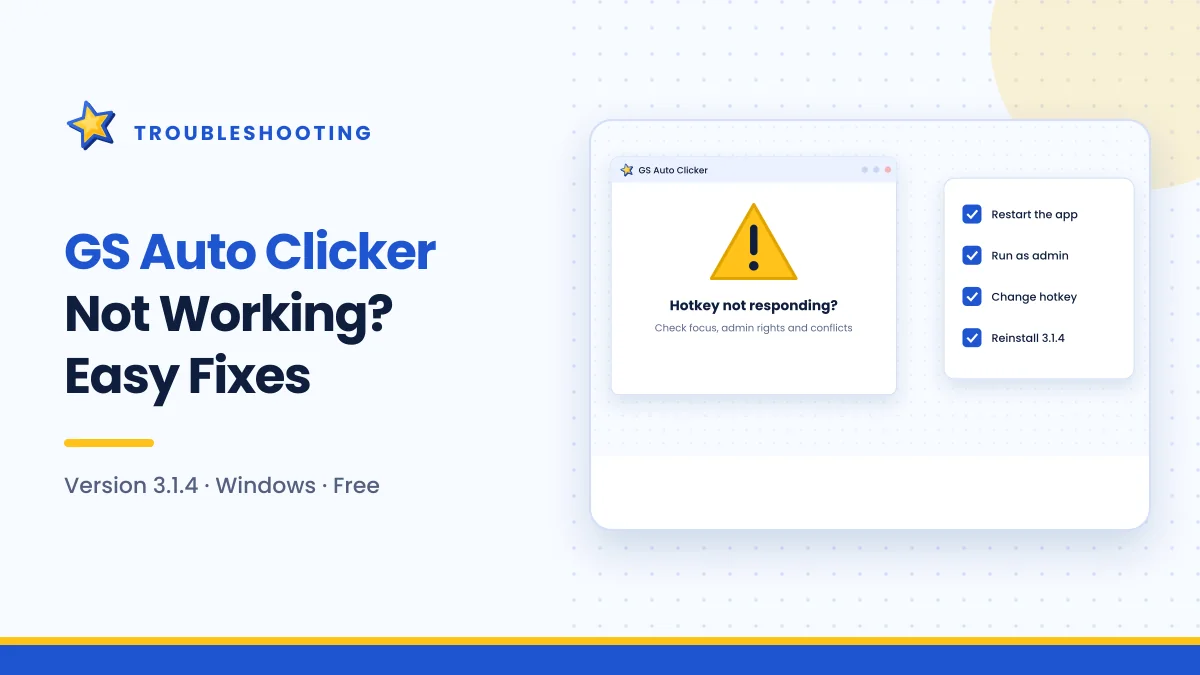
When GS Auto Clicker stops working, the cause is almost always one of a handful of things: a hotkey conflict, a permission mismatch, a game that blocks simulated input, or settings that do not suit the task. This guide helps you identify which one you are facing and fix it in order, from the quickest checks to the more involved solutions.
Start here: quick checks
Before diving into specific problems, run through this list. It solves a surprising number of cases in under a minute.
- Is GS Auto Clicker actually running? Look for its window or taskbar icon.
- Are you pressing the right hotkey? The default is F8, but you may have changed it.
- Is the repeat count set to zero or already finished? Check Options → Clicking.
- Is the cursor over the target? Without recording or a fixed pointer, clicks go wherever the cursor is.
- Have you restarted the program? Close it fully and open it again.
If none of these help, find your symptom below.
Symptom guide
| Symptom | Most likely cause | Jump to |
|---|---|---|
| Pressing the hotkey does nothing | Conflict or permissions | Hotkey not responding |
| Works on desktop, not in game | Administrator rights or game protection | Not working in games |
| Clicks land in wrong place | Pointer movement or layout change | Clicks in the wrong position |
| Some clicks are skipped | Interval too short | Clicks being missed |
| Cannot stop the clicking | Repeat until stopped plus blocked hotkey | Clicking will not stop |
| Program will not open | Installation or security software | Program does not start |
Hotkey not responding
Cause 1: Another program uses the same key
Global hotkeys can only belong to one program at a time. Screen recorders, overlays, voice chat apps and some games often claim function keys.
Fix: Change the hotkey under Options → Settings → Hotkey to an unused key such as F6 or F9, then test it in Notepad. Our hotkey guide lists keys that rarely clash.
Cause 2: The laptop function row sends media commands
On many laptops, pressing F8 alone adjusts brightness or volume.
Fix: Hold Fn while pressing F8, enable Fn Lock, or pick a key that does not need Fn.
Cause 3: The active window runs as administrator
Windows blocks a standard program from interacting with an elevated one. If your target program runs as administrator, the hotkey may be ignored while that window is focused.
Fix: Close GS Auto Clicker, right-click its shortcut and choose Run as administrator. Both programs now have the same privilege level.
Not working in games
Games are the most common place for trouble, for three main reasons.
Exclusive full-screen mode
Some games take exclusive control of input in full-screen mode.
Fix: Switch the game to windowed or borderless windowed mode in its display settings, then try again.
The game runs with elevated rights
Some launchers start games as administrator.
Fix: Run GS Auto Clicker as administrator so it matches.
The game blocks simulated input deliberately
Competitive and online games often use anti-cheat systems that ignore or detect automated clicks.
Fix: There is no workaround you should use here. If a game blocks automation, it is a deliberate rule, and trying to bypass it can get your account banned. Use the clicker only where automation is allowed.
Clicks in the wrong position
The pointer moved during the job
If you bumped the mouse, single-point clicks follow the cursor.
Fix: Turn on fix the pointer while clicking in Options → Clicking.
The layout changed after recording points
Recorded positions are exact screen coordinates. Moving a window, changing resolution or display scaling, or switching monitors shifts everything.
Fix: Clear the recorded list and pick each point again with the window in its final position. See How to Record Multiple Clicks for details.
Multiple monitors
Coordinates can behave unexpectedly if monitors use different scaling.
Fix: Keep the target window on one monitor, ideally your main display, and record points there.
Clicks being missed
The interval is too short
The target program needs time to respond. If clicks arrive too quickly, some are dropped.
Fix: Increase the interval in Options → Clicking. Start at 500 ms to one second, confirm every click registers, then shorten gradually. Our settings guide has values for common tasks.
A loading step in a sequence
In a recorded sequence, one slow step (such as a dialog opening) can make the next click arrive too early.
Fix: Set the interval to suit the slowest step in the sequence.
Clicking will not stop
This happens when "repeat until stopped" is on and the hotkey is not reaching the program.
Fix, immediately:
- Move the mouse to a harmless area if you can.
- Press Ctrl + Shift + Esc to open Task Manager.
- Select GS Auto Clicker and click End task.
Fix, afterwards: Switch to a fixed repeat count and test your hotkey carefully before using "until stopped" again.
Program does not start
Security software quarantined it
Antivirus programs sometimes isolate small automation tools by mistake.
Fix: Open Windows Security → Virus & threat protection → Protection history to see if the file was blocked. If you downloaded it from goldensoft.org and are confident it is genuine, restore it from there. If you are unsure where it came from, delete it and download a fresh copy instead. Do not disable your antivirus.
Corrupted installation
Fix: Uninstall GS Auto Clicker from Settings → Apps, restart your PC, and reinstall the latest version. See the installation guide.
Repackaged or outdated installer
Copies from unofficial sites may be modified or broken.
Fix: Remove the program and download version 3.1.4 directly from the developer. Our download guide explains how to verify the file.
Settings seem to reset or behave oddly
If options do not seem to stick, close the program properly using its window controls rather than ending it in Task Manager, then reopen it and check. If problems continue, reinstalling usually restores normal behaviour.
When to contact the developer
If you have tried everything relevant above and the program still misbehaves, the issue may be specific to your system or a bug in the software. Contact GoldenSoft through goldensoft.org and include:
- Your Windows version (run
winver) - The GS Auto Clicker version
- The exact steps that cause the problem
- Whether it happens with every program or only one
This site is independent, so we cannot fix the software itself, but we are happy to update this guide if you find a solution we have not covered.
Frequently asked questions
Why does GS Auto Clicker work in Notepad but not my game?
Usually because the game runs as administrator, uses exclusive full-screen, or blocks automated input. Try administrator mode and windowed display first.
Will reinstalling delete my settings?
It may. Note your interval, repeat count and hotkey before reinstalling so you can set them again quickly.
Is it safe to add GS Auto Clicker as an antivirus exclusion?
Only if you are certain the file came from the developer. Exclusions reduce protection, so restoring a single quarantined file is usually a better choice than excluding a folder permanently.
Summary
Most GS Auto Clicker problems trace back to hotkey conflicts, mismatched administrator rights, games that block automation, layout changes after recording, or intervals that are too short. Work through the quick checks, match your symptom to the table, and apply the fix for that cause. Keep a fixed repeat count while troubleshooting, and remember that Task Manager is always available as an emergency stop.

Get GS Auto Clicker 3.1.4
Free, under 1 MB, for Windows. The button opens the developer’s website, goldensoft.org, in a new tab.
Download GS Auto Clicker