GS Auto Clicker is one of the smallest useful programs you can put on a Windows PC, and downloading it takes only a few seconds. The part that deserves your attention is not the speed but the source. Because the program is popular and free, copies of it appear on dozens of download portals, some of which wrap the original file in their own installer. This guide shows you exactly where to get the genuine file, what it should look like when it arrives, and how to check it before you open it.
What you are downloading
Before you click anything, it helps to know what to expect.
| Detail | What to expect |
|---|---|
| Program | GS Auto Clicker |
| Developer | GoldenSoft |
| Current version | 3.1.4 |
| Platform | Windows (XP through Windows 11) |
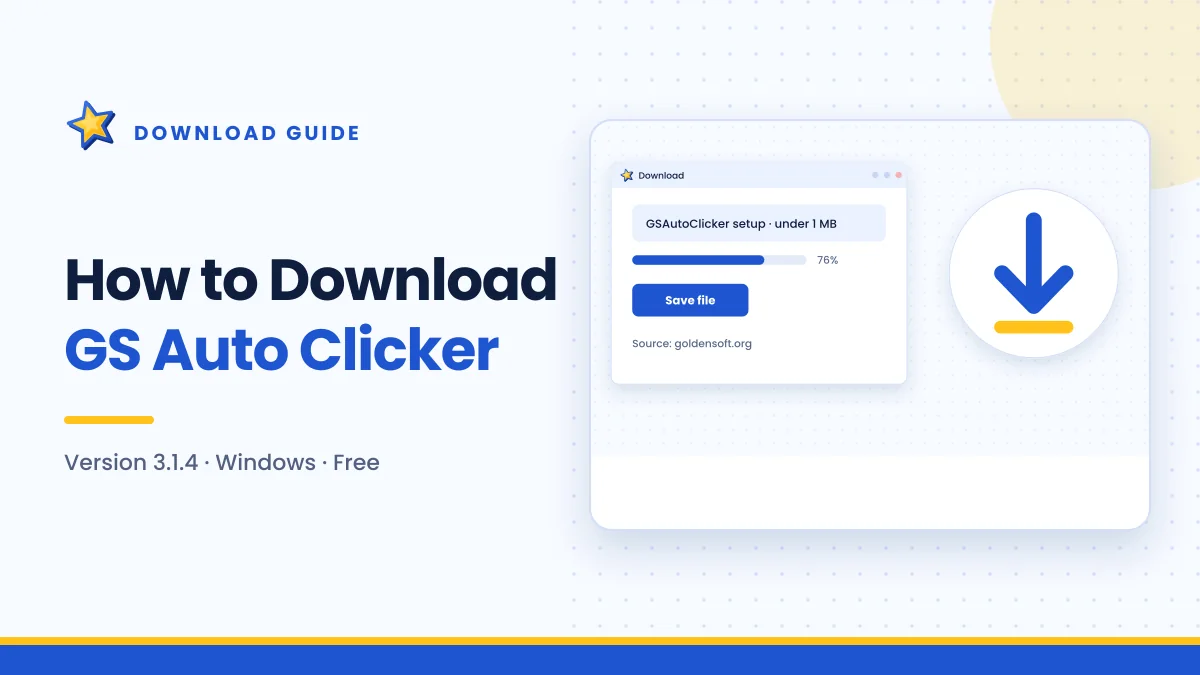
| File size | Under 1 MB |
| License | Freeware |
The size is the most useful clue. The real installer is well under one megabyte. If a site hands you a 20 MB or 50 MB file labelled "GS Auto Clicker", it almost certainly contains something extra.
Step 1: Confirm your system is supported
GS Auto Clicker is a Windows desktop program. It runs on Windows 11, 10, 8, 7 and older versions back to XP, on both 32-bit and 64-bit editions. There is a single installer, so you do not need to choose between architectures.
To check your Windows version quickly:
- Press Windows + R on your keyboard.
- Type
winverand press Enter. - A small window shows your edition and build number.
If you are on a Mac, Chromebook or phone, this guide does not apply directly. Check GoldenSoft's own website for what is offered on other platforms.
Step 2: Go to the developer's website
The safest source for any free program is the company that makes it. For GS Auto Clicker, that is GoldenSoft at goldensoft.org.
The download buttons on gsautoclicker.app open that site in a new browser tab. We deliberately do not host the file ourselves, because a copy on our server would be one more place where a file could, in theory, be tampered with. Getting it from the publisher removes that question entirely.
When the new tab opens, look at the address bar and confirm:
- The domain is goldensoft.org, spelled correctly
- The connection shows a padlock icon (HTTPS)
- There is no long chain of redirects through unrelated domains
Why not use any download portal?
Large download directories are not automatically unsafe. Many scan files and keep the original installer intact. The trouble is that you cannot easily tell which ones do. Some portals use their own "download manager" that offers extra toolbars, browser changes or trial software during setup. Others show several large green "Download" buttons that are actually advertisements. Going straight to the developer avoids all of that.
Step 3: Click the real download link
On the developer's page, find the download link for the Windows version. Take a moment before clicking:
- Real download links usually sit next to the program name and version number.
- Be wary of buttons inside boxes labelled "Advertisement" or "Sponsored".
- Ignore pop-ups claiming your PC is infected or that you need a "driver update" first.
Your browser will either start the download automatically or ask where to save it.
Step 4: Save the file and check it
Let the browser save the file to your Downloads folder. Once it finishes, open the folder and look at the file before doing anything else.
Check the file name
The file name should clearly refer to GS Auto Clicker, for example something like GSAutoClicker.exe or a setup-style variant. Be suspicious of generic names such as setup_download_manager.exe or names that mention a different website.
Check the file size
Right-click the file, choose Properties, and look at the size. It should be under 1 MB. This is the single quickest way to spot a repackaged installer.
Check the publisher information
In the same Properties window, look at the Details tab. It may list the product name and version. Seeing GS Auto Clicker and version 3.1.4 there is a good sign that you have the expected file.
Step 5: Scan the file with Windows Security
Windows includes Microsoft Defender at no extra cost, and it is enough for this check.
- Right-click the downloaded file.
- Choose Scan with Microsoft Defender (on Windows 11 you may need to click Show more options first).
- Wait for the result.
If the scan finds nothing, you can move on to installation. If it flags something, delete the file, empty the Recycle Bin and download a fresh copy directly from goldensoft.org.
Never turn off your antivirus to get a program to install. If a genuine file is being blocked, there are safer ways to handle it, covered in our installation guide.
Understanding SmartScreen warnings
When you open the installer, Windows may show a blue box titled "Windows protected your PC". This is Microsoft Defender SmartScreen. It appears for many legitimate programs that are not downloaded by huge numbers of people every day, so on its own it does not mean the file is dangerous.
What to do:
- Make sure you got the file from goldensoft.org.
- Make sure your antivirus scan came back clean.
- Click More info, check that the app name looks right, then choose Run anyway.
If you have any doubt at step 1 or 2, stop and download the file again from the official site instead.
Download problems and quick fixes
The download does not start
Some browsers block downloads that open from a new tab. Look for a small download icon in the toolbar or a bar at the bottom of the window asking for permission. Allow it, or right-click the link and choose Save link as.
The browser says the file "isn't commonly downloaded"
Edge and Chrome show this message for files with low download volume. Choose Keep from the download menu only after confirming the source is goldensoft.org. Then scan it as described above.
The file is much bigger than 1 MB
Delete it. You have most likely received a wrapper installer from a third-party portal. Return to the developer's site and download again.
What to do next
Once the file is saved and scanned, you are ready to install. The installation takes less than a minute and is covered step by step in How to Install GS Auto Clicker. After that, the beginner walkthrough shows you how to run your first automated click job.
Frequently asked questions
Is the GS Auto Clicker download free?
Yes. GoldenSoft distributes the Windows program as freeware. You should never be asked to pay or enter card details to download it. A request for payment is a strong sign you are on the wrong site.
Do I need to create an account to download it?
No. The program does not use accounts. If a site insists you register or provide an email address before downloading, look elsewhere.
Can I download it on my phone and move it to my PC?
You can, but there is little reason to. The file is tiny, so downloading it directly on the Windows PC where you will use it is simpler and avoids moving files between devices.
Is it safe to download from gsautoclicker.app?
This site does not host the file. Our buttons take you to the developer's website, which is the most trustworthy place to get it. For a deeper look at safety, read Is GS Auto Clicker Safe?
Summary
Downloading GS Auto Clicker safely comes down to four habits: get it from goldensoft.org, expect a file under 1 MB, check the name and properties, and scan it with Windows Security before opening it. Follow those and you will have a clean copy ready to install in under two minutes.

Get GS Auto Clicker 3.1.4
Free, under 1 MB, for Windows. The button opens the developer’s website, goldensoft.org, in a new tab.
Download GS Auto Clicker