The hotkey is the most important control in GS Auto Clicker. It starts your click job, stops it, and acts as your emergency brake when something goes wrong. The default is F8, which works for most people, but it can clash with games, screen recorders and other programs. This guide shows how to change the hotkey, how to pick a key that will not cause conflicts, and how to fix a hotkey that stops responding.
Why the hotkey matters
GS Auto Clicker uses a global hotkey. That means it works even while another window has focus, which is exactly what you need: you can keep your cursor over a game or form and still start or stop clicking.
The same key does both jobs:
- First press: starts the click job with your current settings
- Second press: stops it immediately
Because it is also your way out of an unwanted click loop, the hotkey should be easy to press, unlikely to be triggered by accident, and not shared with another program.
When you should change it
Consider a new hotkey if:
- A game uses F8 for quick-save, quick-load or another action
- Screen recording or streaming software uses F8
- Your laptop requires the Fn key for F8, making it awkward to press quickly
- You keep pressing F8 by accident while typing
- The hotkey simply does nothing when pressed
How to change the hotkey
Step 1: Open the settings
In GS Auto Clicker, click Options and choose Settings.
Step 2: Find the Hotkey setting
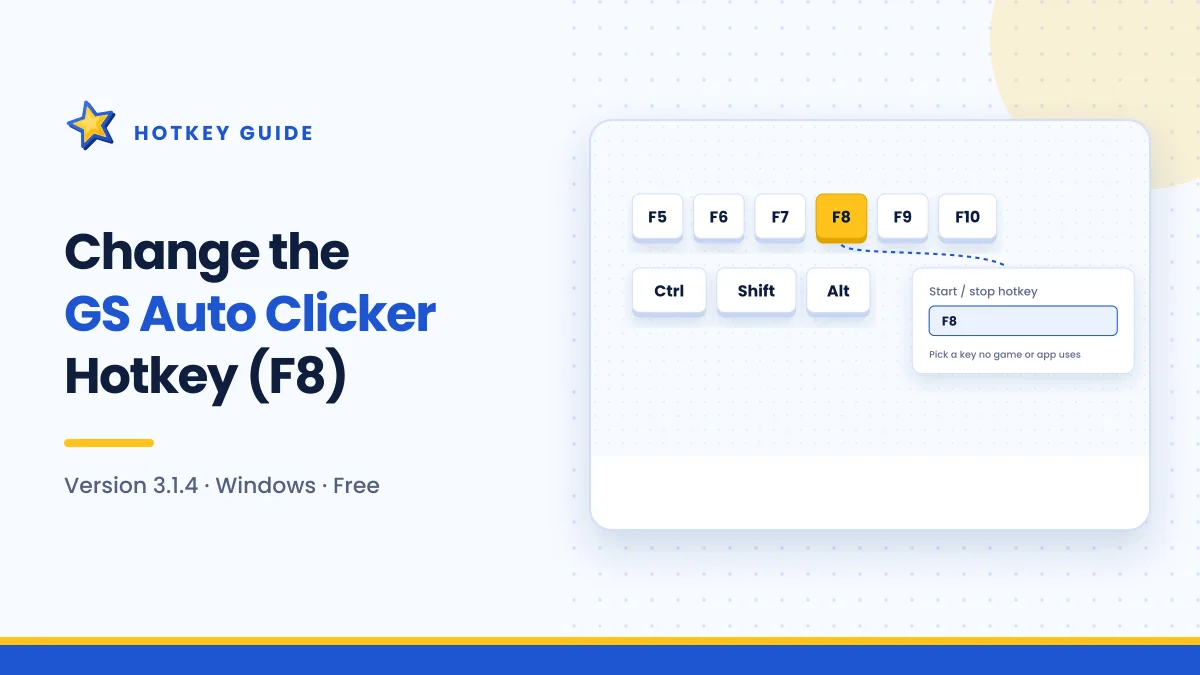
Select the Hotkey section. It shows the current key, which will be F8 unless you have changed it before.
Step 3: Choose a new key
Click in the hotkey field or use the selector provided, then choose your new key. Pick from the recommendations below if you are unsure.
Step 4: Save
Click OK to apply the change.
Step 5: Test it
Open Notepad, hover over the text area, set a small fixed repeat count, and press your new hotkey. The clicks should start, and pressing the key again should stop them. Test the stop action specifically, since that is the one you rely on in an emergency.
Choosing a good hotkey
Recommended keys
| Key | Why it works well | Watch out for |
|---|---|---|
| F6 | Rarely used by games; easy to reach | Some browsers use it to focus the address bar |
| F7 | Seldom assigned in most programs | Caret browsing toggle in some browsers |
| F9 | Uncommon in many games | Used by some recorders and IDEs |
| F10 | Easy to find at the edge of the row | Activates the menu bar in many Windows apps |
| Pause/Break | Almost never used | Missing on many compact keyboards |
| Scroll Lock | Rarely used by anything | Missing on many laptops |
Keys to avoid
- Letters and numbers. You will trigger the clicker while typing.
- Space, Enter, Esc, Tab. These are used constantly by almost every program.
- F1. Opens help in many applications.
- F5. Refreshes browsers and many apps, and is a common quick-save key in games.
- F11 and F12. Full-screen toggles and developer tools in browsers.
Laptop keyboards
Many laptops map the function row to media controls like brightness and volume. In that case, pressing F8 alone may change a setting instead of triggering GS Auto Clicker. You have two options:
- Hold Fn while pressing the function key.
- Turn on Fn Lock (often Fn + Esc) so the function keys act as F1–F12 by default.
If neither suits you, choose a key that does not need Fn on your keyboard.
How to check for conflicts
Before settling on a key, think about every program that is open while you use the clicker:
- Check the game's key bindings. Look in its controls or keyboard settings for the key you want.
- Check background tools. Screen recorders, overlay software, voice chat apps and clipboard managers often use function keys.
- Test with everything running. Open the programs you normally use, then press the hotkey and confirm only GS Auto Clicker responds.
If two programs use the same global hotkey, one of them usually wins and the other appears broken.
Fixing a hotkey that does not respond
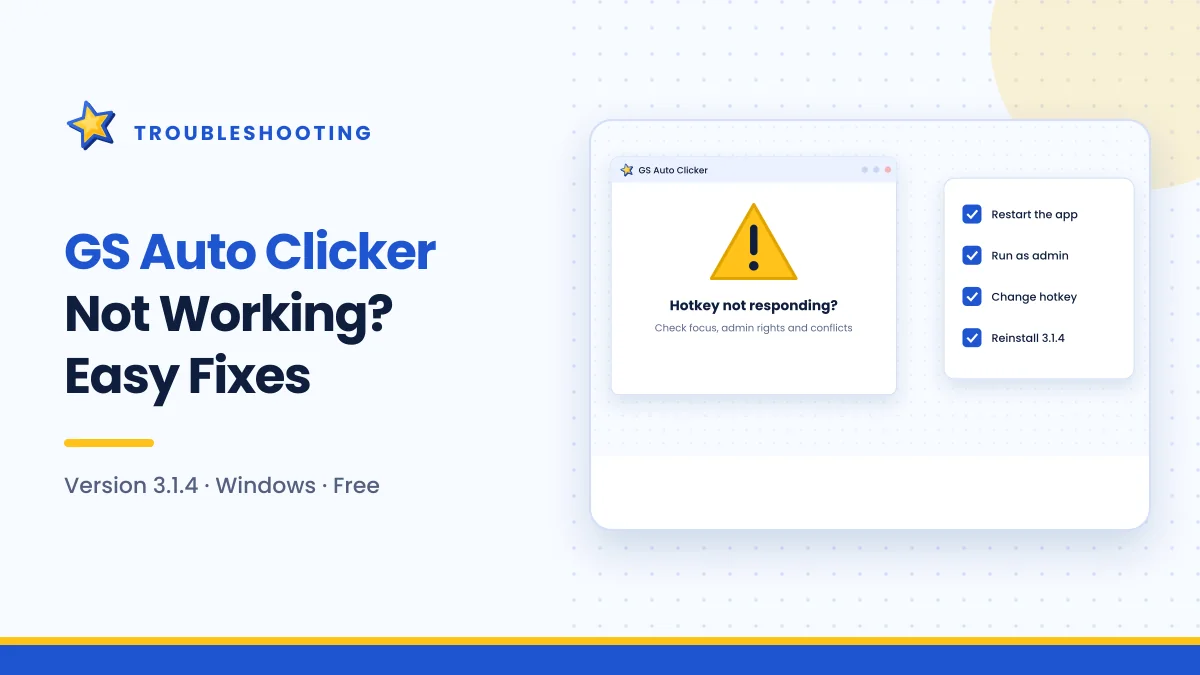
The target program runs as administrator
Windows prevents a normal program from sending input to one running with administrator rights. If your game or application runs elevated, GS Auto Clicker's hotkey and clicks may be ignored. Close GS Auto Clicker, right-click its shortcut, and choose Run as administrator.
Another program grabbed the key first
Change to a different key using the steps above, or close the conflicting program.
The game blocks global hotkeys
Some full-screen games capture keyboard input exclusively. Try switching the game to windowed or borderless windowed mode.
The Fn layer is active
On laptops, the key may be sending a media command instead of F8. Use Fn or Fn Lock, or choose a different key.
The program is not running
It sounds obvious, but if GS Auto Clicker was closed by the "action after clicking" setting, the hotkey will not work until you reopen it. Check Options → Settings → Other.
For more fixes, see the full troubleshooting guide.
Emergency stop without the hotkey
If clicking continues and the hotkey will not stop it:
- Press Ctrl + Shift + Esc to open Task Manager directly.
- Find GS Auto Clicker in the list.
- Select it and click End task.
Afterwards, switch your repeat mode to a fixed count and choose a hotkey that you have tested properly. A fixed count means the job ends on its own even if the hotkey fails.
Hotkeys and accessibility
If you use GS Auto Clicker to reduce strain from heavy mouse use, the hotkey position matters even more. Choose a key you can press without stretching or looking down, such as a function key directly above your resting hand. Some people prefer a key on the far edge of the keyboard, like Pause/Break, because it is easy to find by touch.
Good hotkey habits
- Test the stop action every time you change the key.
- Use fixed counts while trying a new key.
- Keep one hand near the hotkey during "repeat until stopped" jobs.
- Write down your choice if you use several automation tools, so you do not assign the same key twice.
Frequently asked questions
What is the default GS Auto Clicker hotkey?
The default start and stop key is F8.
Can I use a key combination like Ctrl + something?
Use whatever the hotkey selector in your version offers. Single function keys are the simplest and least likely to clash with typing.
Does the hotkey work when GS Auto Clicker is minimised?
Yes. It is a global hotkey, so it works while the program is minimised or another window is active, as long as GS Auto Clicker is running.
Why does my hotkey work on the desktop but not in my game?
The game is probably running with administrator rights or capturing keyboard input. Run GS Auto Clicker as administrator or use windowed mode.
Summary
Change the GS Auto Clicker hotkey under Options → Settings → Hotkey whenever F8 clashes with another program or is awkward to press. Choose a key you rarely use elsewhere, such as F6, F7 or F9, avoid typing and common shortcut keys, and always test that the key stops a job as well as starting it. If the hotkey stops responding, check for administrator rights, conflicting software and laptop Fn settings. To put your new key to work, see the beginner walkthrough.

Get GS Auto Clicker 3.1.4
Free, under 1 MB, for Windows. The button opens the developer’s website, goldensoft.org, in a new tab.
Download GS Auto Clicker